Uploading Existing Content
Upload existing recordings, training videos, or documents instead of recording live.
If you already have a recording, training video, workshop recording, or written documentation of the workflow, upload it instead of recording live. You can upload both videos and documents together.
1
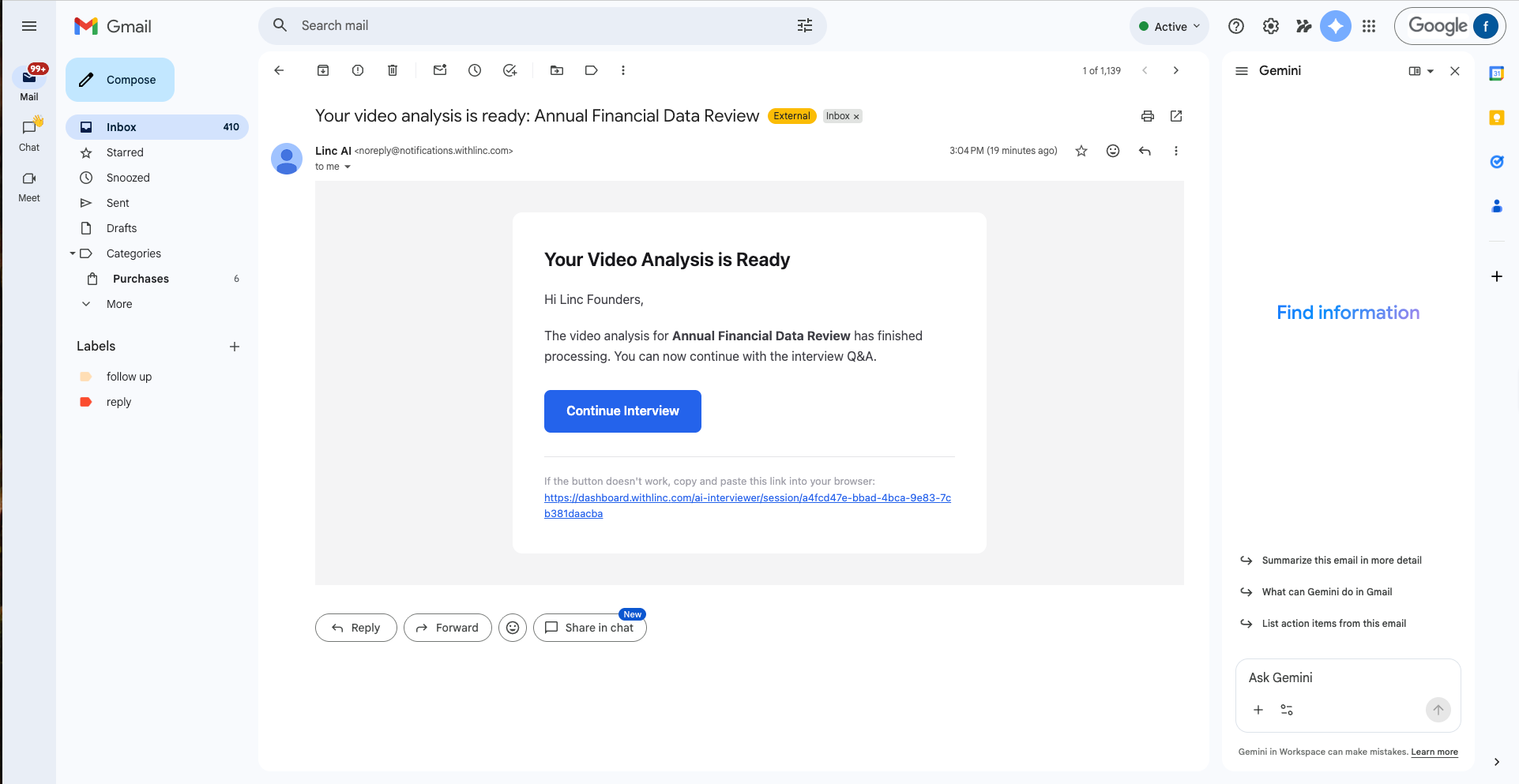
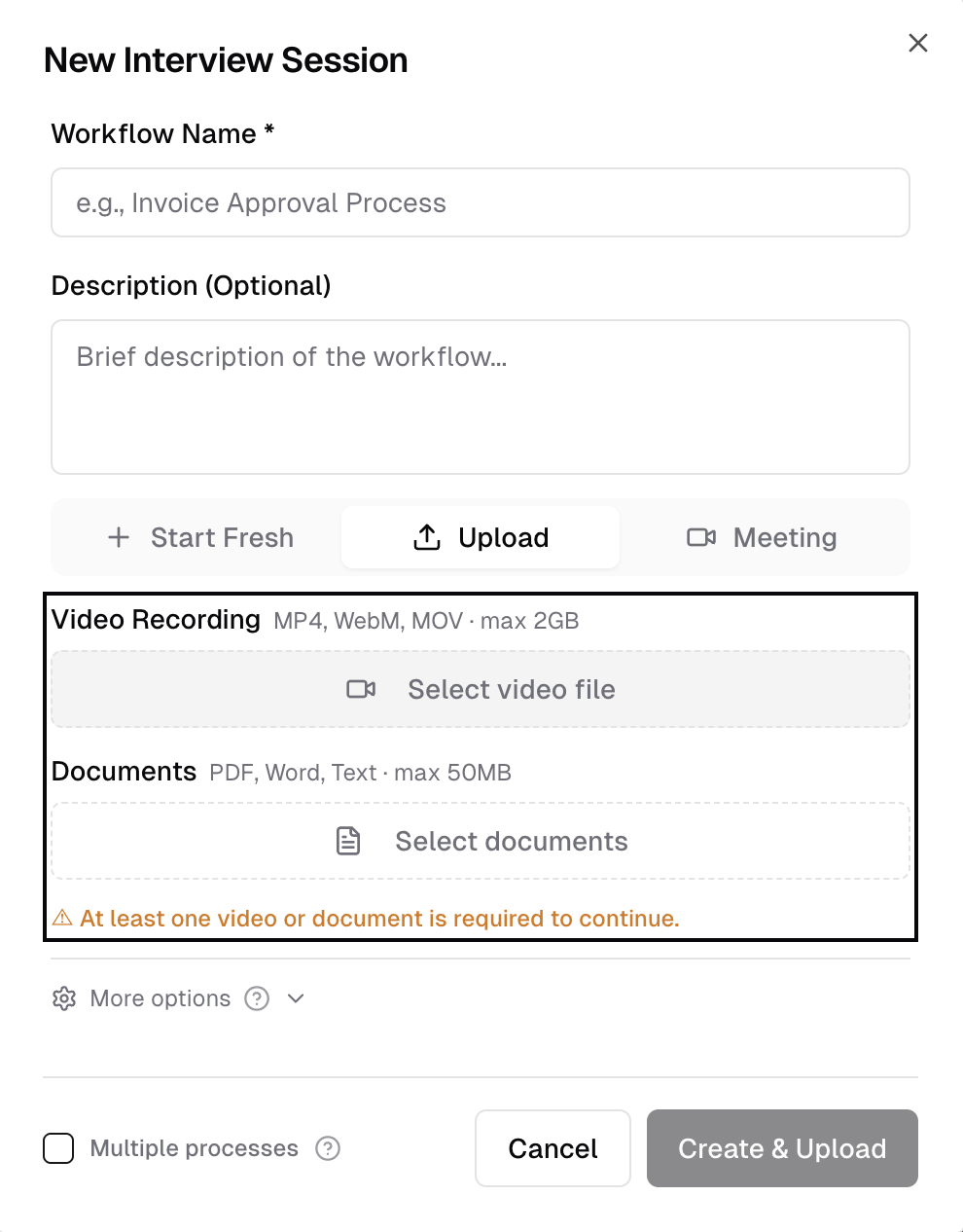
In the New Session modal, select the Upload tab.
2
Click Select video file or Select documents and choose your files. You can upload both a video and supporting documents together.
3
If the video covers multiple workflows, toggle "Multiple processes" on.
4
Click Upload and wait for processing. You will receive an email when the AI interview is ready.
Tip
Supported video formats: MP4, WEBM, MOV (max 2GB). Supported documents: PDF, Word, TXT, Excel, CSV, JSON. You can also upload a transcript of a call alongside the video for better accuracy.
Adding a Meeting Bot
For live calls where workflows are being discussed, you can send a Linc AI note-taker bot to the meeting instead.
1
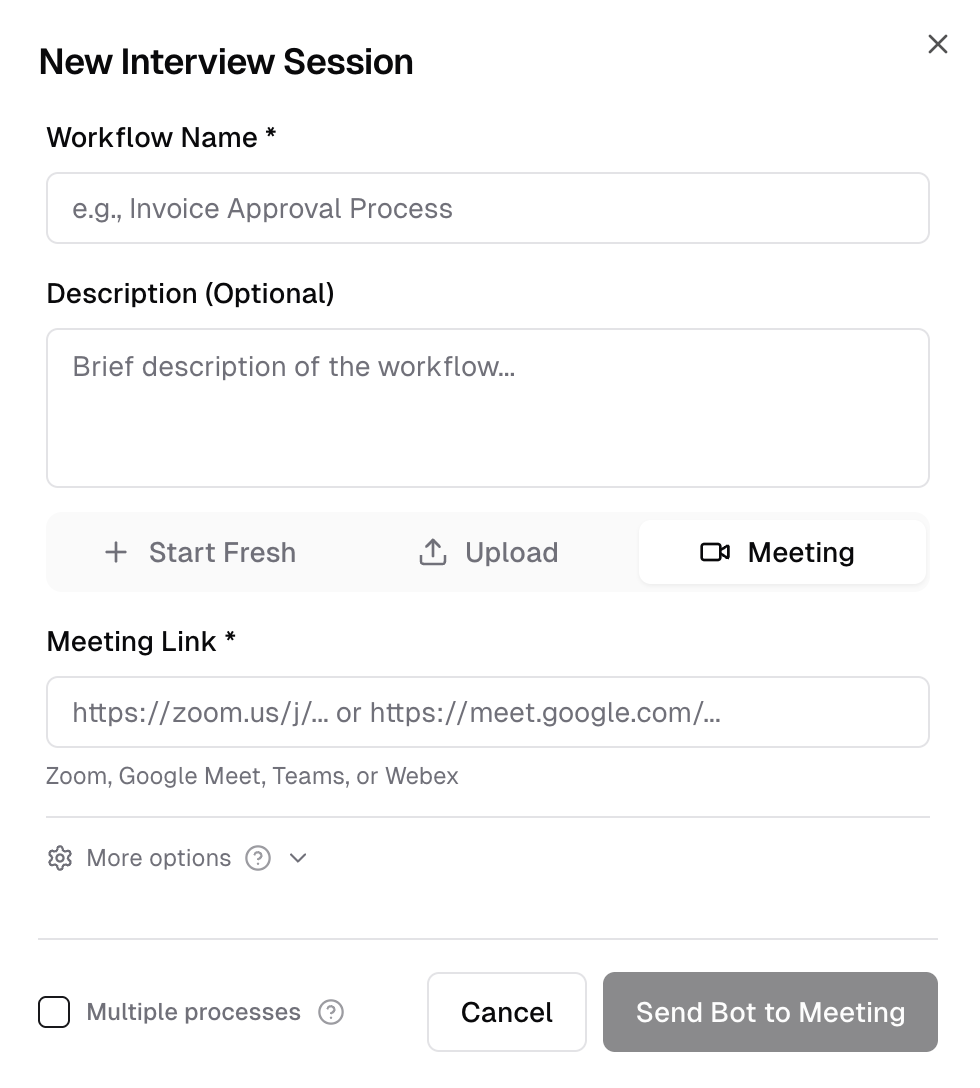
Select the Meeting tab in the New Session modal.
2
Paste the meeting link (Zoom, Google Meet, Teams, or Webex).
3
Click Send Bot. The bot will automatically join, record, and process the meeting.
The meeting bot is useful for keeping documentation up to date as transformation projects progress — add it to recurring status meetings to capture updates, new requirements, and changes to existing workflows.