Design Studio
Redesign a process chain into an AI-enabled to-be state, driven by the opportunities Architect found.
Design Studio is the AI-native workspace where you turn a captured as-is process into an AI-enabled to-be design. Use it once Architect has analyzed your workflows and surfaced opportunities for a process or chain. The agent reads the captured as-is process as context, pulls in the relevant opportunities, and generates a redesigned to-be diagram you can compare, walk through, and refine.
Opening Design Studio
Studio opens scoped to whatever you launch it from, so the canvas and agent focus on the right processes:
- From a process chain — Click "Redesign with AI" on a chain card (or in the process lens switcher) in Architect. Studio opens in chain mode, scoped to every process in the chain.
- From an opportunity — Open an opportunity in Architect and launch the Design Studio link. Studio opens scoped to that opportunity, with the opportunity's affected processes in scope and the opportunity itself pre-selected as the redesign driver.
- From a single process — Launch from a process strategy card in the transformation roadmap to design one process on its own.
Studio opens in a new tab. A scope badge in the header (Chain, Opportunity, or none) tells you how it was launched, and a process switcher next to it lets you move between the in-scope processes.
How the To-Be Is Opportunity-Driven
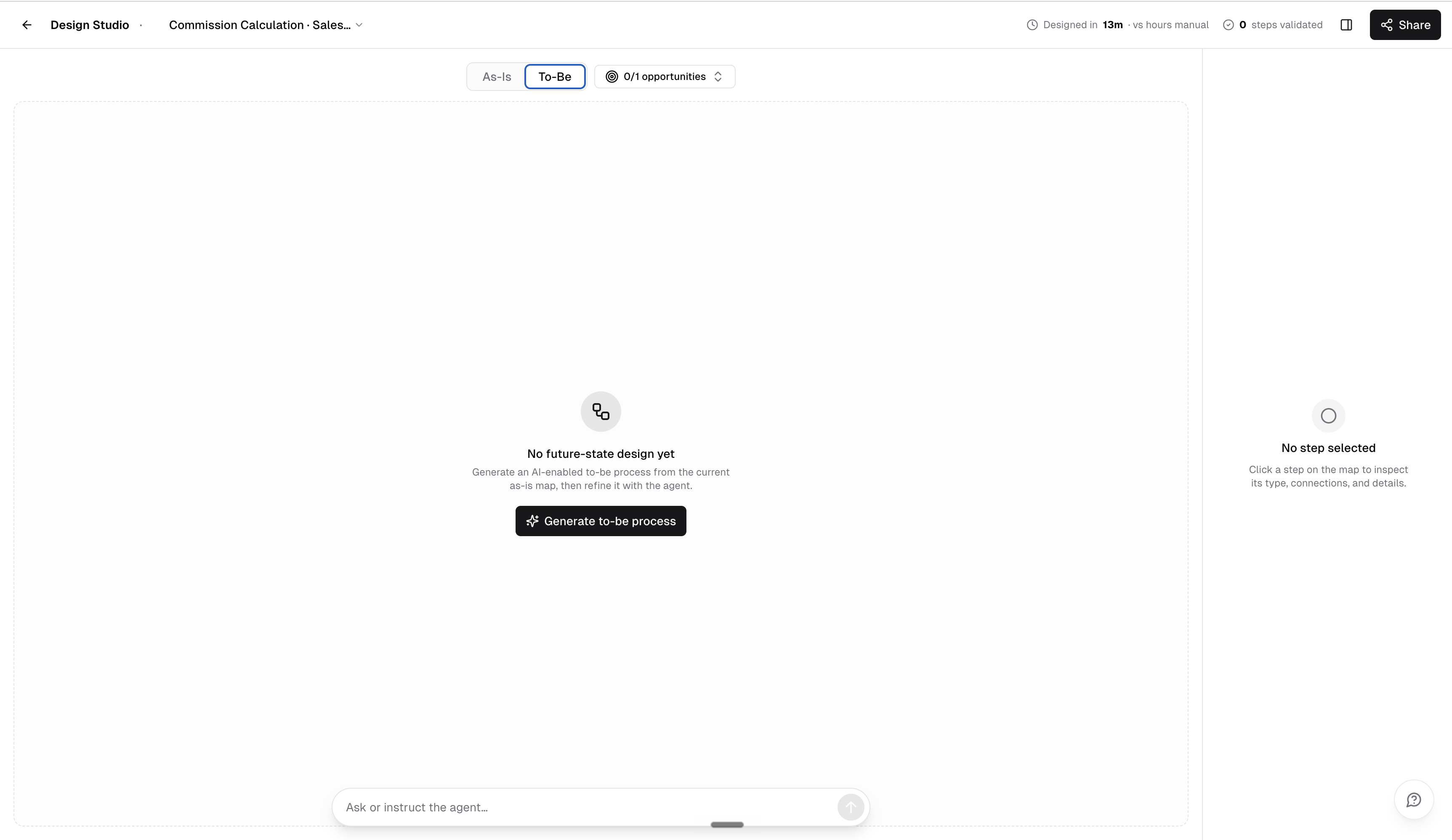
The to-be is not a generic redesign. Studio loads the opportunities that touch the in-scope processes, and the to-be is generated to realize the ones you select. In opportunity mode, the launching opportunity is selected by default. For chains and single processes, nothing is pre-selected, so you curate a coherent set of opportunities rather than bundling everything at once.
Switch the canvas to the To-Be lens and use the opportunities popover (showing how many of the available opportunities are selected) to add or remove drivers before generating. The captured as-is process is always used as context, so the to-be reconciles the selected opportunities against how the work actually runs today.
Core Flow
The Composer Dock
The Design Agent lives in a floating composer dock at the bottom of the canvas (it replaced the older agent sidebar). The composer pill is always visible, so you can ask a question or instruct the agent at any point. When a conversation is running, the thread expands upward into a scrollable, frosted panel that you can expand to a taller view or collapse back to the pill.
The dock is context-aware: it knows which process and lens you are looking at, and actions elsewhere in Studio (such as asking the agent to redesign a selected step from the inspector) seed questions straight into it.
Watching the Agent Reason
While the to-be is generating, the agent's planning and reasoning stream live over the canvas, rendered as markdown and auto-scrolling as new text arrives. The reasoning streams concurrently with the diagram build, so you can see what the agent is doing while the BPMN is being constructed rather than waiting for a silent spinner.
To-Be BPMN and the As-Is Diff
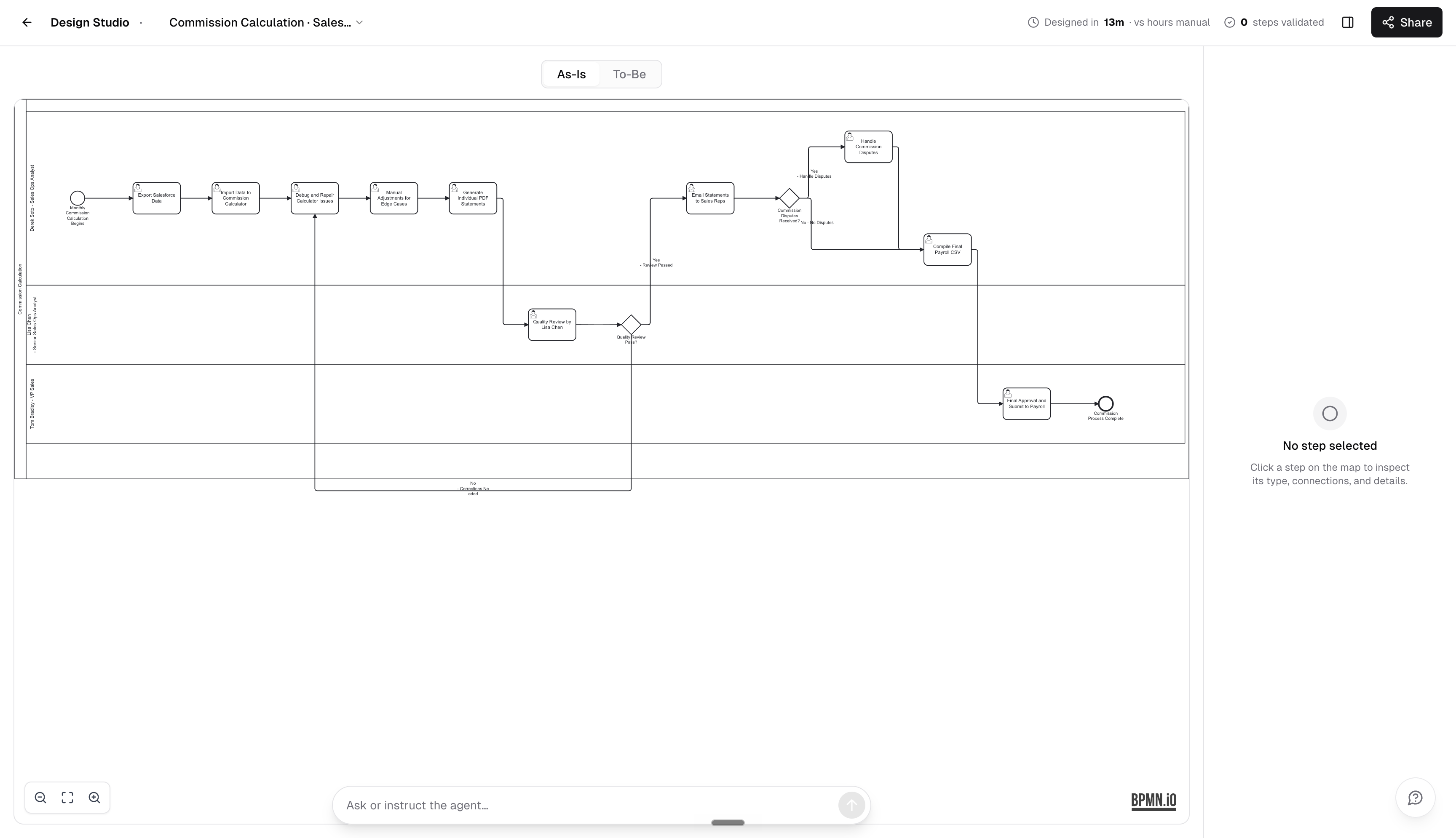
The generated to-be is a full BPMN diagram. Studio computes a diff between the as-is and to-be, and the changed elements are highlighted on the to-be canvas. Toggle between the As-Is and To-Be lenses to compare the original captured process against the redesign.
Combined End-to-End Chain View
In chain mode, the as-is is a single combined map that stitches the chain's member processes into one end-to-end diagram, and the to-be is generated for that whole chain. This gives you a redesign that spans the full cross-department workflow, including the handoffs between processes, instead of one process at a time.
Step-by-Step Walkthrough
Once a to-be exists, the change controls in the header show how many elements changed. Use the previous and next arrows to walk the diff one change at a time. Each step focuses the canvas on that changed element (showing "Change 2/7", for example), so you can review exactly what the redesign altered and validate it in the inspector.
Iterating and Refining
Refining is non-destructive: change which opportunities the to-be should realize and click Regenerate, or use the composer dock to ask for specific adjustments. Previously generated to-be diagrams and combined chain maps are cached, so reopening Studio for the same scope brings your work back rather than starting over.