Members & Invitations
Add team members and assign workflow recording sessions.
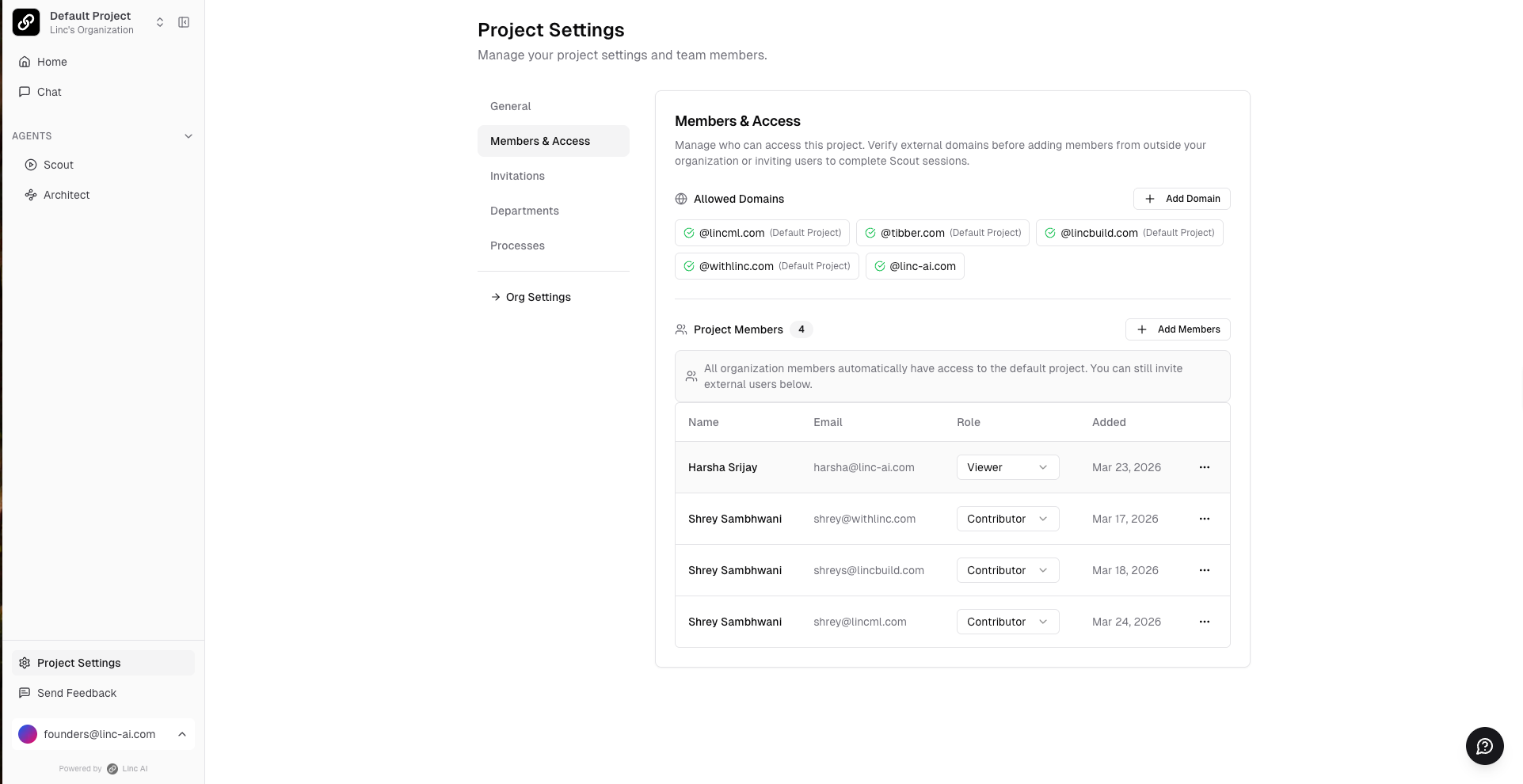
Adding Members
1
Go to Project Settings → Members & Access.
2
If adding external users, first add their domain under Allowed Domains and complete the verification process.
3
Click Add Members, enter email addresses, assign a role (Contributor or Viewer), and send invitations.
Roles:
- Admin — Full access to all sessions, settings, Architect, and member management.
- Contributor — Can create and manage their own sessions, record workflows, and review their generated SOPs.
- Viewer — Read-only access for leadership or stakeholders who want to see insights without contributing.
Assigning Workflow Sessions
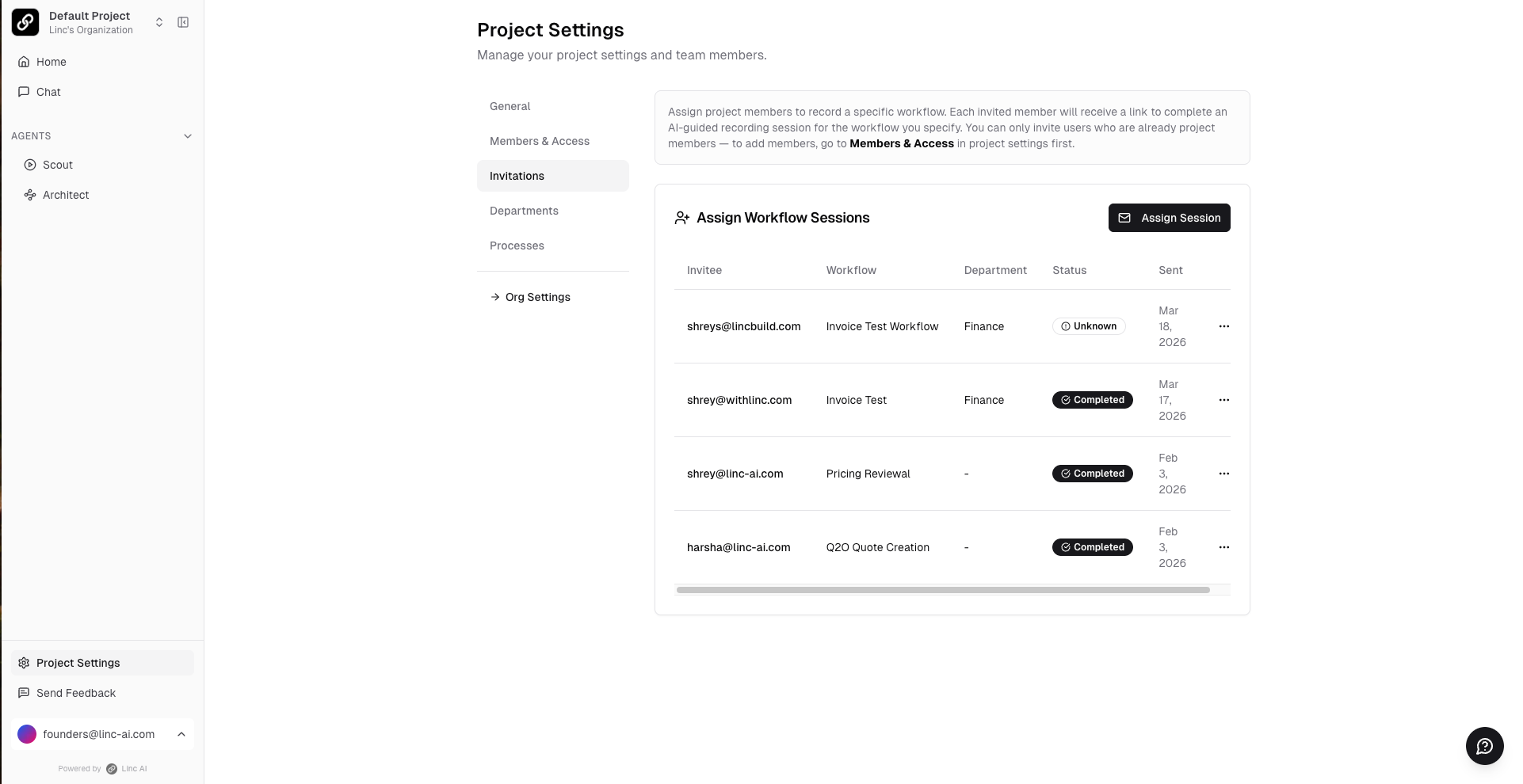
Once members are added, you can assign specific workflows for them to document. They will receive an email with a direct link.
1
Go to Project Settings → Invitations tab.
2
Click Assign Session.
3
Select the member, enter the workflow name, choose the department and process category.
4
Optionally customize the pre-interview instructions, interview context, and interview categories to tailor the questions the AI will ask.
5
Click Send. The member will receive an email with a direct link to their assigned session.
Tip
You can track invitation status from this page. Sessions show as "Completed" once the user has finished their interview and deliverables have been generated.