Live Screen Recording
Record your screen while performing the workflow with the Chrome extension.
Before You Start
When you open a "Start Fresh" session, you will see a full-screen immersive view with your workflow name, the Chrome extension status, and a "Start recording" button.
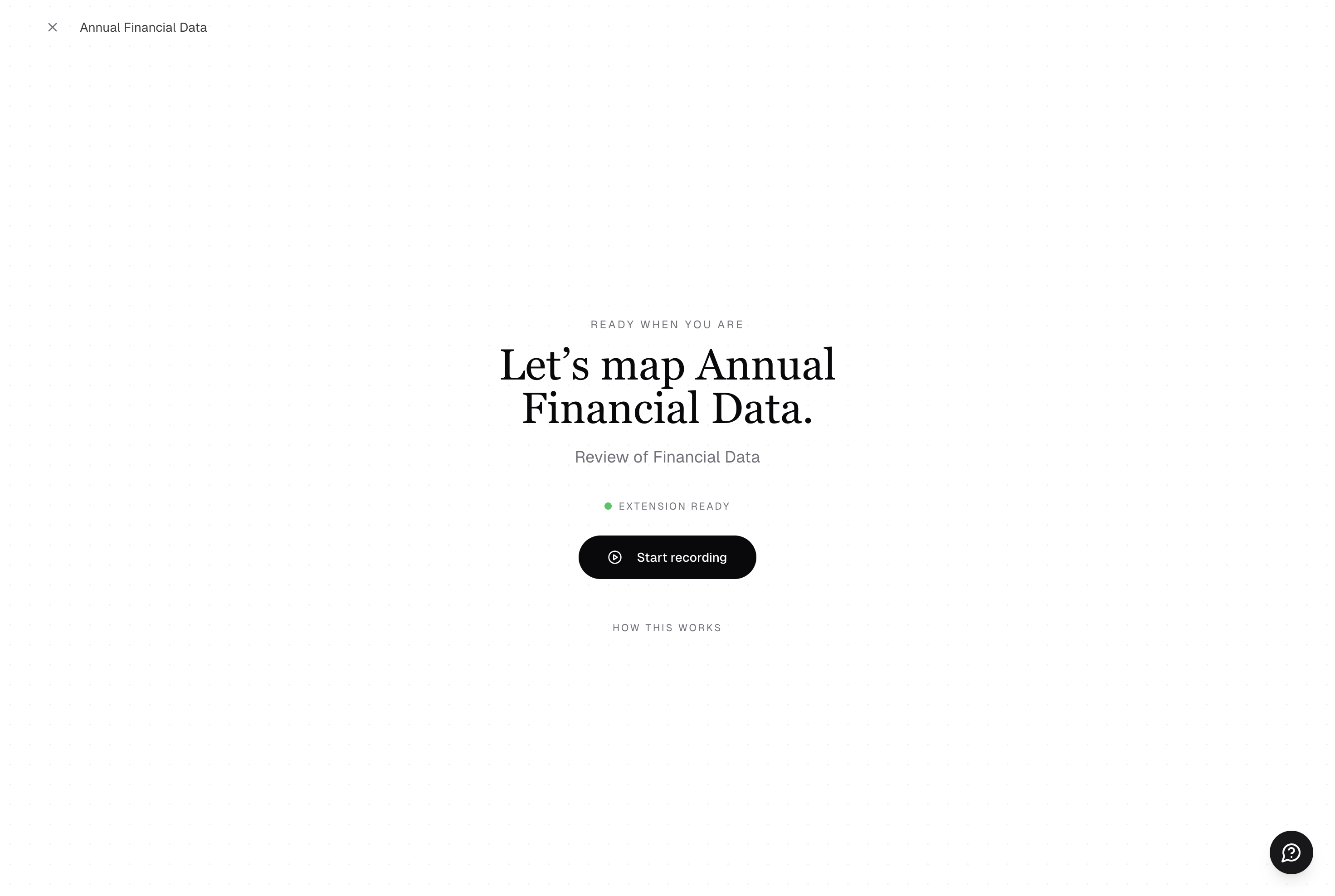
A green "Extension Ready" indicator confirms the Chrome extension is installed and active. If you see a missing extension warning, install the extension first (see the Chrome Extension page).
Recording Consent (First Time)
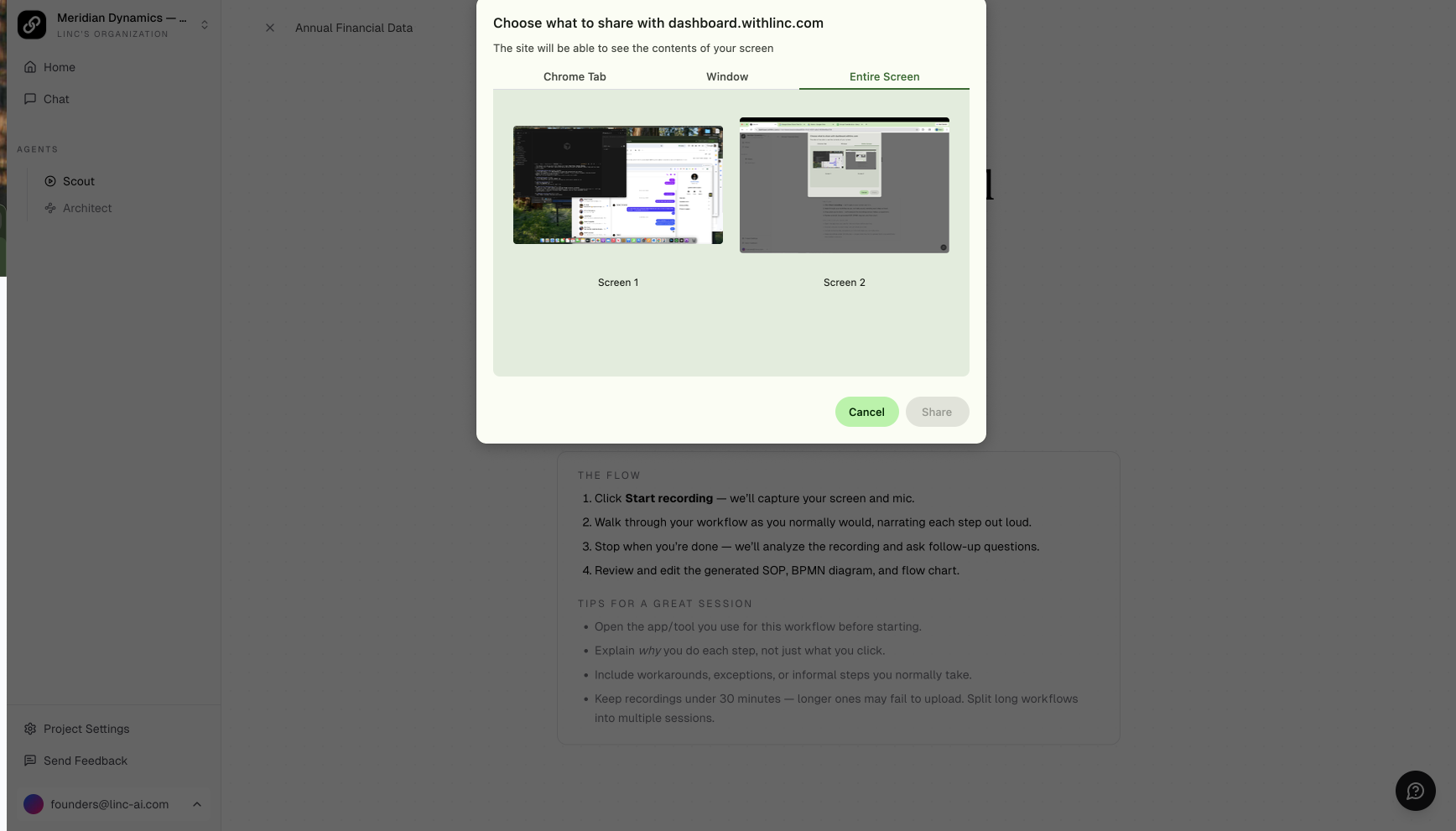
The first time you record, a consent modal appears before recording can start. It lays out exactly what is and is not captured, so you know the scope before you begin.
- What we will see: your active workflow tab, your microphone (so you can narrate), your clicks and page transitions, form-field labels (not values), and the visual workflow with PII auto-blurred.
- What we won't see: other tabs, windows, or apps; anything during moments you have paused; and names, emails, or IDs, which are auto-redacted.
You must tick the consent checkbox to enable the Start recording button and proceed. You can optionally check "Don't show this again" so the modal is suppressed on later sessions.
Recording Your Workflow
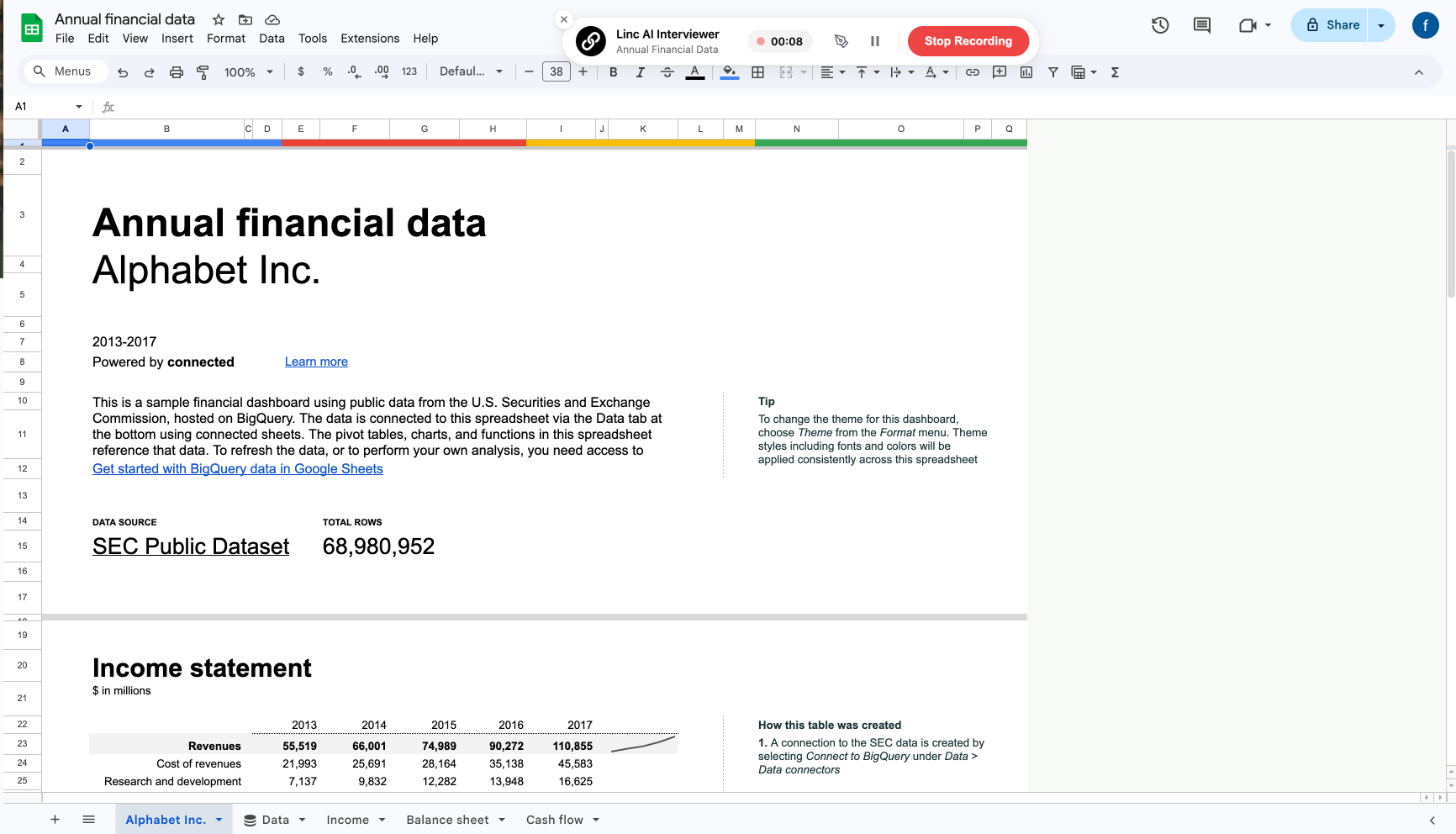
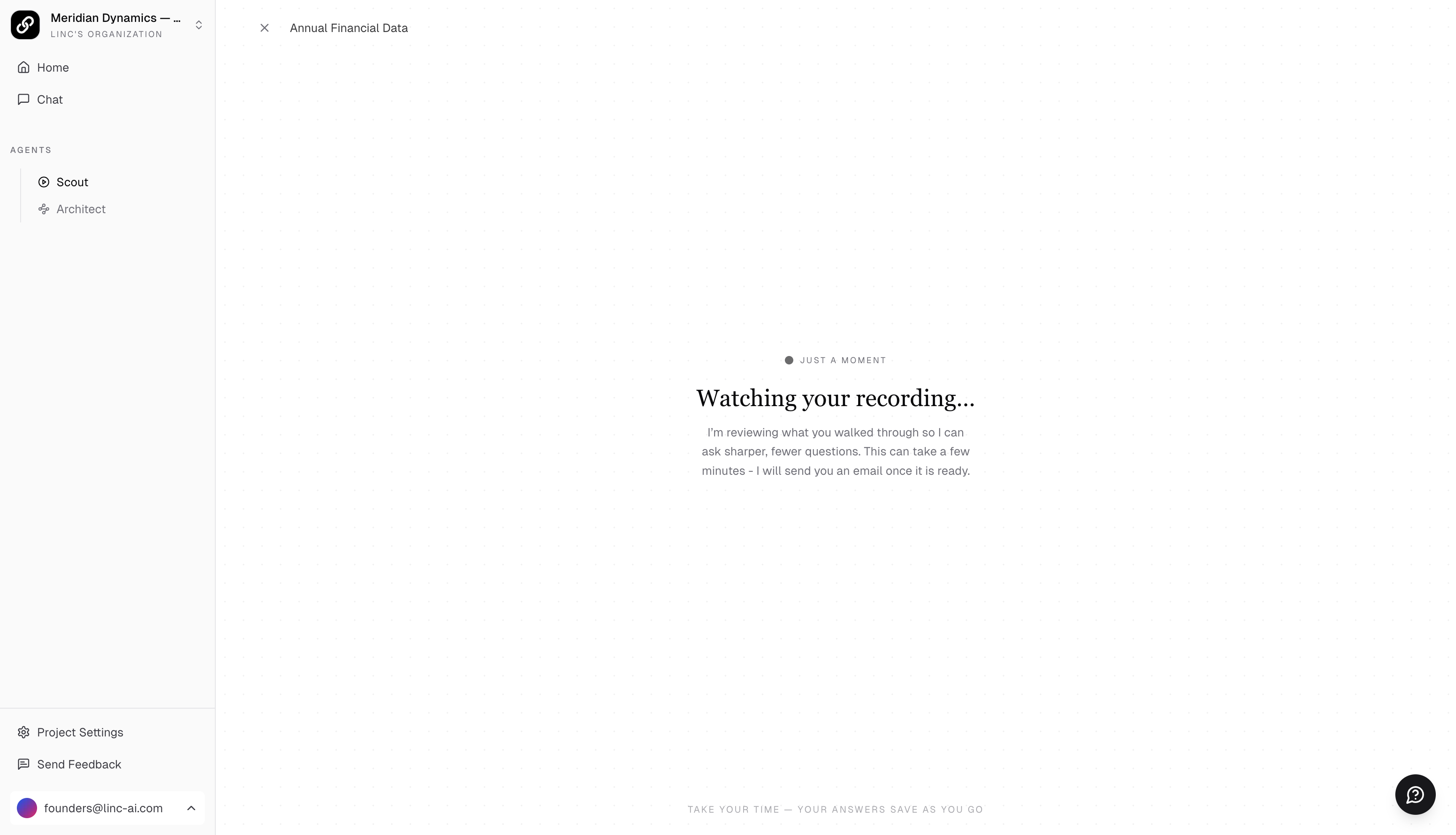
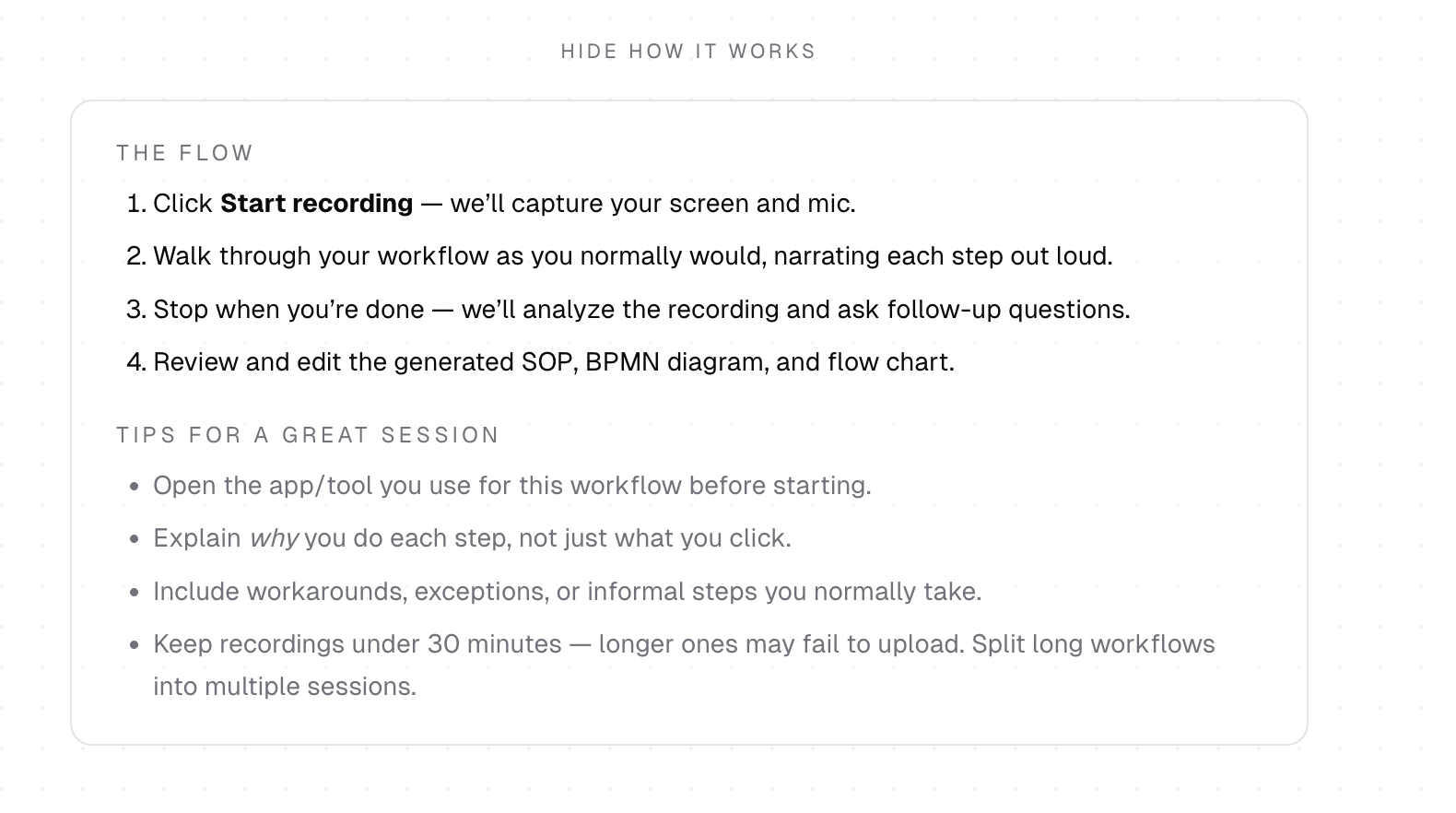
Narrate as you go. Explain why you do each step, not just what you click. Mention workarounds, exceptions, and decisions you make along the way — this is what distinguishes a useful SOP from a basic screen recording.
Keep recordings under 30 minutes. For longer workflows, break them into multiple shorter sessions. Long recordings may fail to upload.
Who Can Play Back Your Recording
Raw screen recordings are restricted to the session owner. You can only see and play back your own recording. Because a recording can capture incidental personal content from your screen, even the person who invited you and org admins with the see-all-sessions role cannot play it back.
Allowed Recording Methods
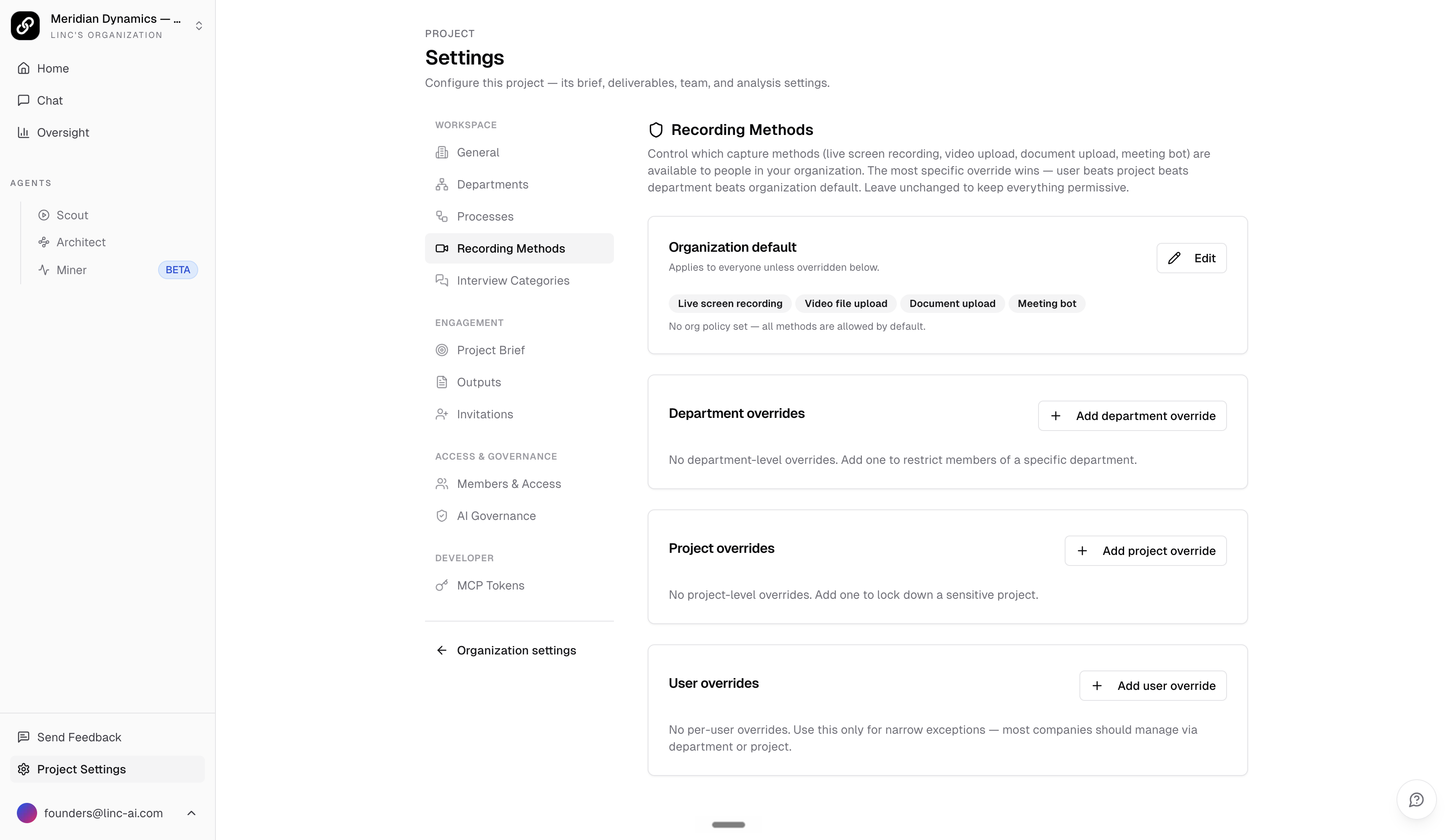
Your admin may restrict which capture methods are available to you (live screen recording, video upload, document upload, or meeting bot). If a method has been turned off for your organization, department, project, or account, it shows a "disabled by your administrator" notice in the New Session dialog and you will not be able to start it.
Admins configure this under Settings, Recording Methods. The most specific override wins (user beats project beats department beats the organization default), and methods are permissive unless an admin restricts them.