Home Page & Collections
Navigate the dashboard, manage projects, and upload documents.
After signing in, you will see the Home dashboard. This is your central hub for accessing projects, collections, and all three agents (Scout, Architect, Chat) from the left sidebar.
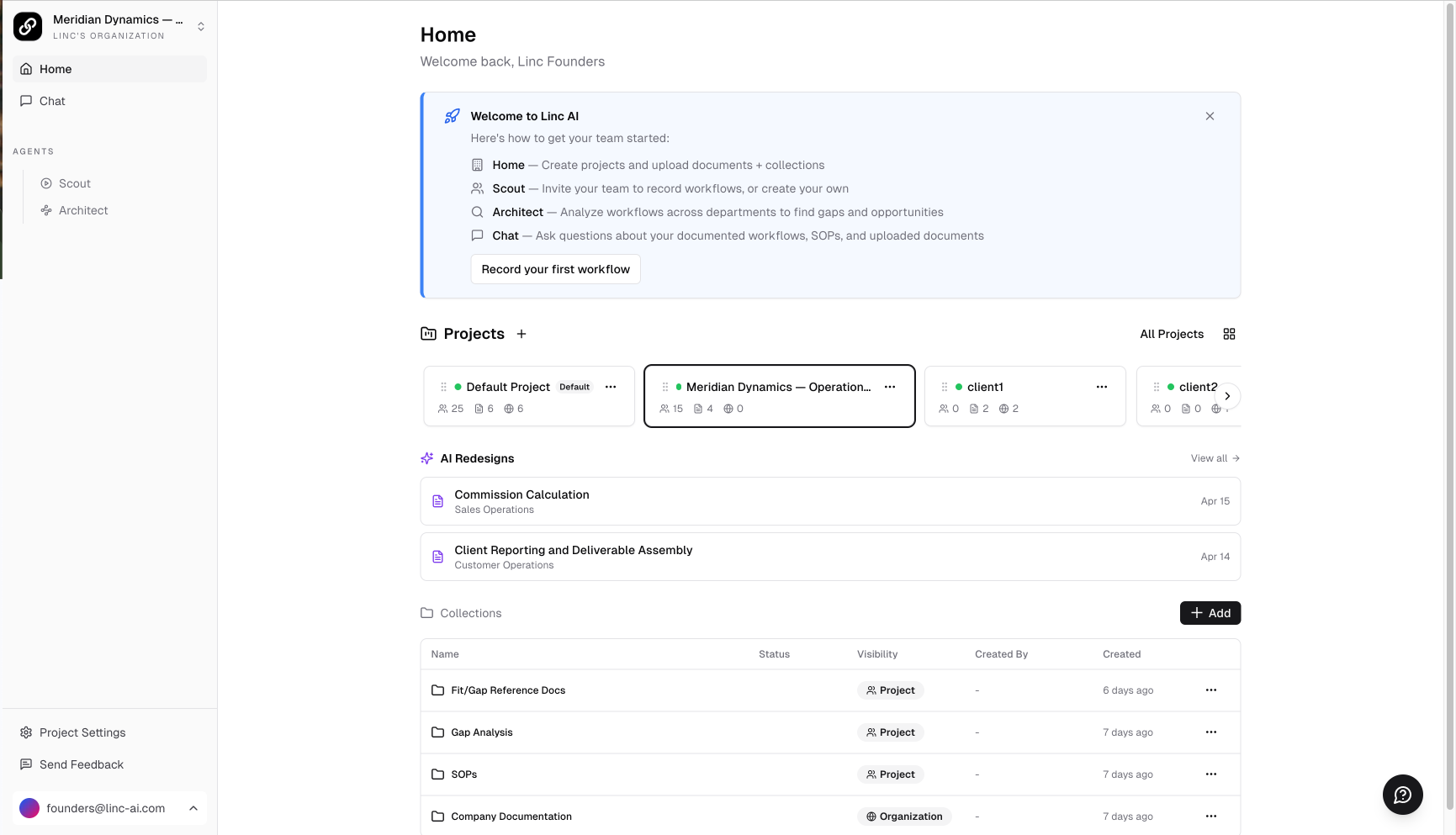
- Projects — Your work is organized into projects. Click a project card to filter all content to that project. Use the dropdown in the top-left corner of the sidebar to switch projects quickly.
- Getting Started Cards — For new users, guidance cards at the top point you toward Scout, Architect, and Chat. These can be dismissed once you are familiar with the platform.
- Collections — Below the projects section, you will see your document collections. These contain generated SOPs, uploaded reference documents, and analysis outputs that provide context to the AI.
- Left Sidebar — Navigate between Home, Chat, Scout, and Architect. Admin users will also see Project Settings and Org Settings at the bottom.
Tip
Make sure the correct project is selected before creating sessions or running analyses. The project you select determines what data Scout and Architect work with.
Uploading Documents to Collections
Beyond the SOPs and analyses that Scout and Architect generate automatically, you can upload your own documents into collections to give the AI more context. This includes things like ERP manuals, compliance policies, training materials, vendor contracts, or any reference documentation relevant to your project.
Everything in your collections becomes searchable through Chat — so the more context you provide, the better the AI can answer questions and generate reports.
1
On the Home page, click the + Add button in the Collections section.
2
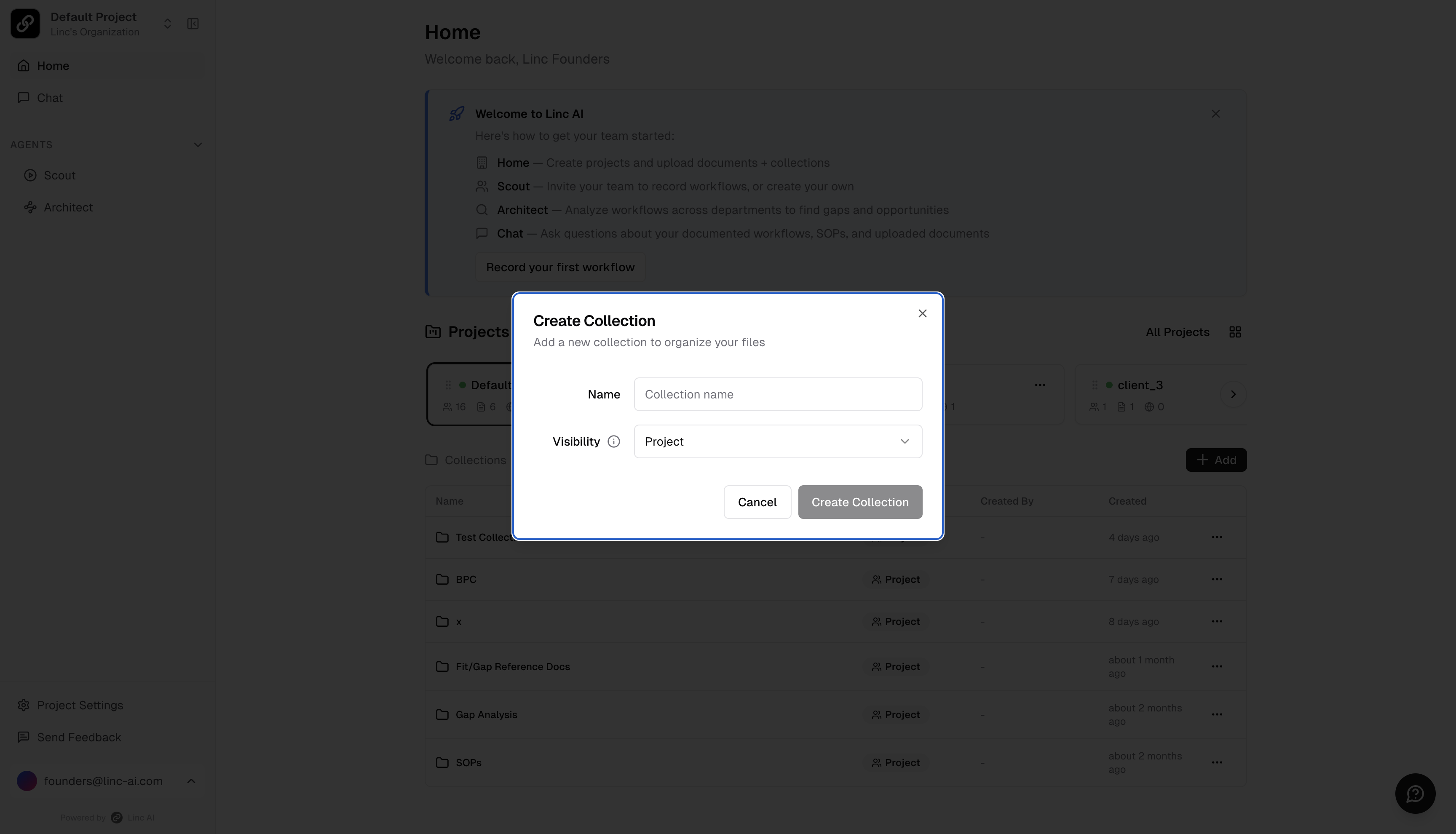
Select Create Collection. Give it a name and set the visibility (Project, Organization, or Private).
3
Click into the collection you just created.
4
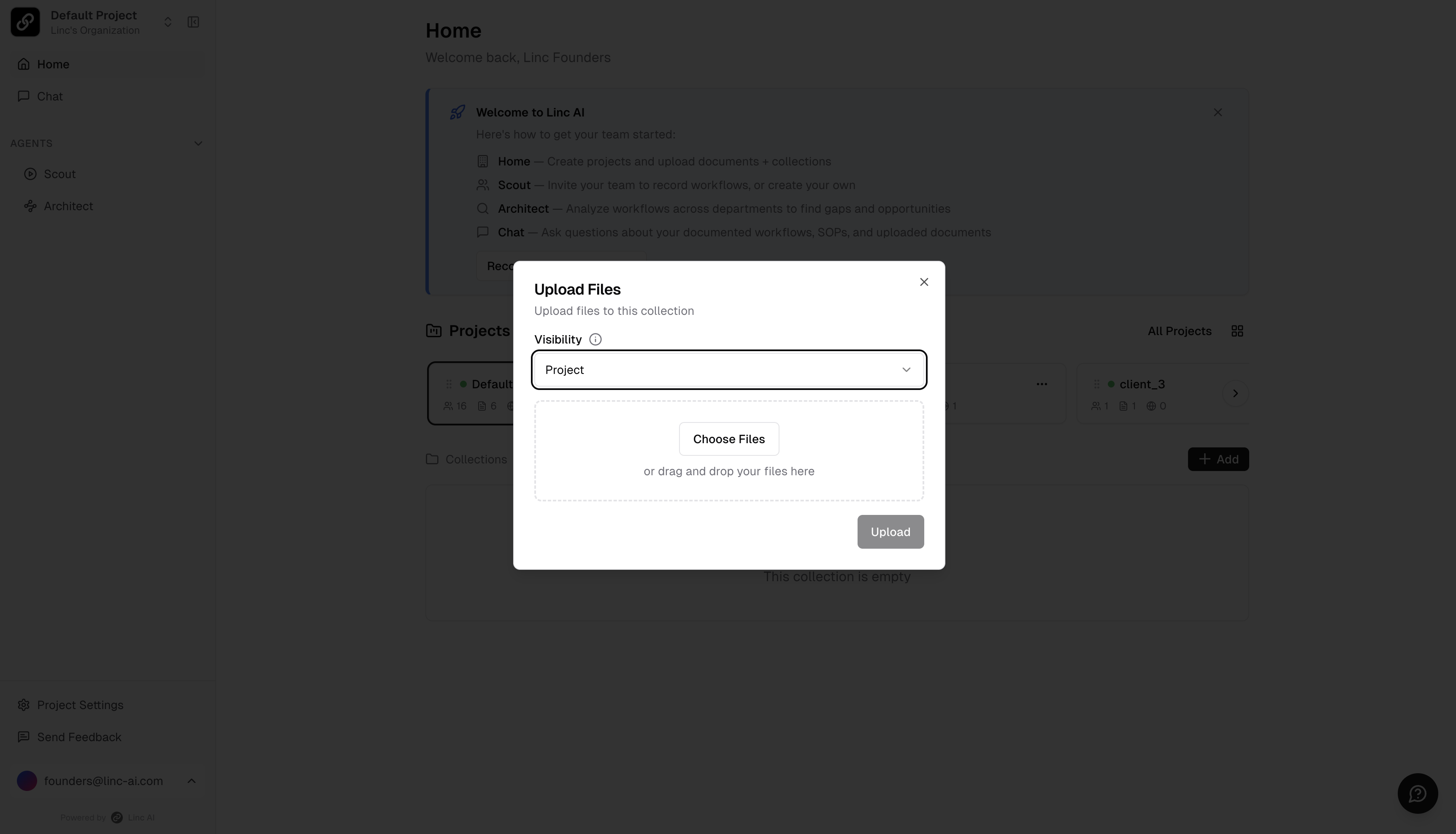
Click + Add inside the collection, then Choose Files to upload documents, or drag and drop files directly. You can also upload entire folders to preserve their structure.
Tip
Collections are not just for process documentation. Upload anything that gives the AI context about your business — org charts, vendor catalogs, policy documents, meeting notes. The richer your knowledge base, the more useful Chat and Architect become.