Background Capture
Continuously and privately mine how work actually gets done across the tools you use, straight from the Chrome extension.
What Background Capture Is
Background Capture is a long-running mode of the Linc Chrome extension. Once you allowlist the apps you want to study, the extension quietly records a plain-English trail of how you work in those tools over days and weeks. That activity syncs into the Miner, where Linc builds a picture of how a process is really performed, not just how someone describes it once.
How it differs from a Scout recording
A Scout screen recording is a single, deliberate session: you start it, narrate one workflow end to end, and stop. Background Capture is the opposite. It is passive and continuous. There is nothing to start for each task and nothing to narrate. It runs in the background across the apps you allowlist and accumulates many real runs of a process over time, which is what surfaces the variants, exceptions, and workarounds a one-off recording can miss.
- Scout recording: one session, one workflow, video plus narration, captured on demand.
- Background Capture: always-on, no narration, a plain-English event trail mined across many sessions.
The two are complementary. Background Capture shows how often and how many ways a process runs in the wild, while Scout interviews capture the intent and reasoning behind it.
The Privacy Model
Background Capture is built to be safe to leave on. It records intent, never content. The extension synthesizes a short human sentence for each action, such as "Clicked Approve" or "Navigated to Requisitions".
- Plain-English only. No pixels, no screenshots, no raw page content or HTML.
- No keystrokes. The extension attaches no keyboard listeners, so nothing you type is recorded.
- No field values. Anything you type into an input, text area, or editable field is ignored. Control labels (a button caption, a menu name) are treated as intent, not data.
- You choose the apps. Capture only runs on the exact sites you add to your allowlist. Every other site is ignored entirely.
- Query strings are stripped. Captured URLs keep only the origin and path, so identifiers carried in a query string are dropped.
The same privacy line shown in the extension reads: Plain-English only, never pixels, never DOM, never keystrokes. You can review everything captured at any time from the extension and export it to CSV.
Enabling Background Capture
Attributing capture to a project
If your organization uses projects, the Connection section includes a "Capturing under" picker. Choose a project to attribute new events to it, or leave it on Organization (no project). You can only attribute to a project you belong to or a default project, so the picker only lists projects you have access to.
The On-Page Pill
Whenever capture is enabled and you are on an allowlisted site, a small pill appears in the bottom-left corner so you always know the page is being process-mined. It is interactive and non-destructive.
- Click the pill to expand a list of the recent actions captured on the current site, with a button to open the Miner.
- Pause or Resume capture directly from the pill.
- Minimize collapses the pill to a small Linc logo icon. It is never removed, so you can always see that capture is active and restore the full pill with a click.
- If you are not signed in, the pill flags "Not syncing" and offers a "Log in to Linc" action so queued events can sync.
How Captured Events Reach the Miner
Events are captured locally first and then flushed to Linc in the background, so a brief network drop or a logged-out moment never loses data. Once they sync, they appear in the Miner under Browser Capture as a live, plain-English activity feed, alongside counts of total events, busiest apps, top actions, and the most recent 24 hours.
Syncing is safe to retry and never produces duplicates, and only events the server accepts are marked as synced. Each event is attributed to you and, when you have chosen one, to the right project.
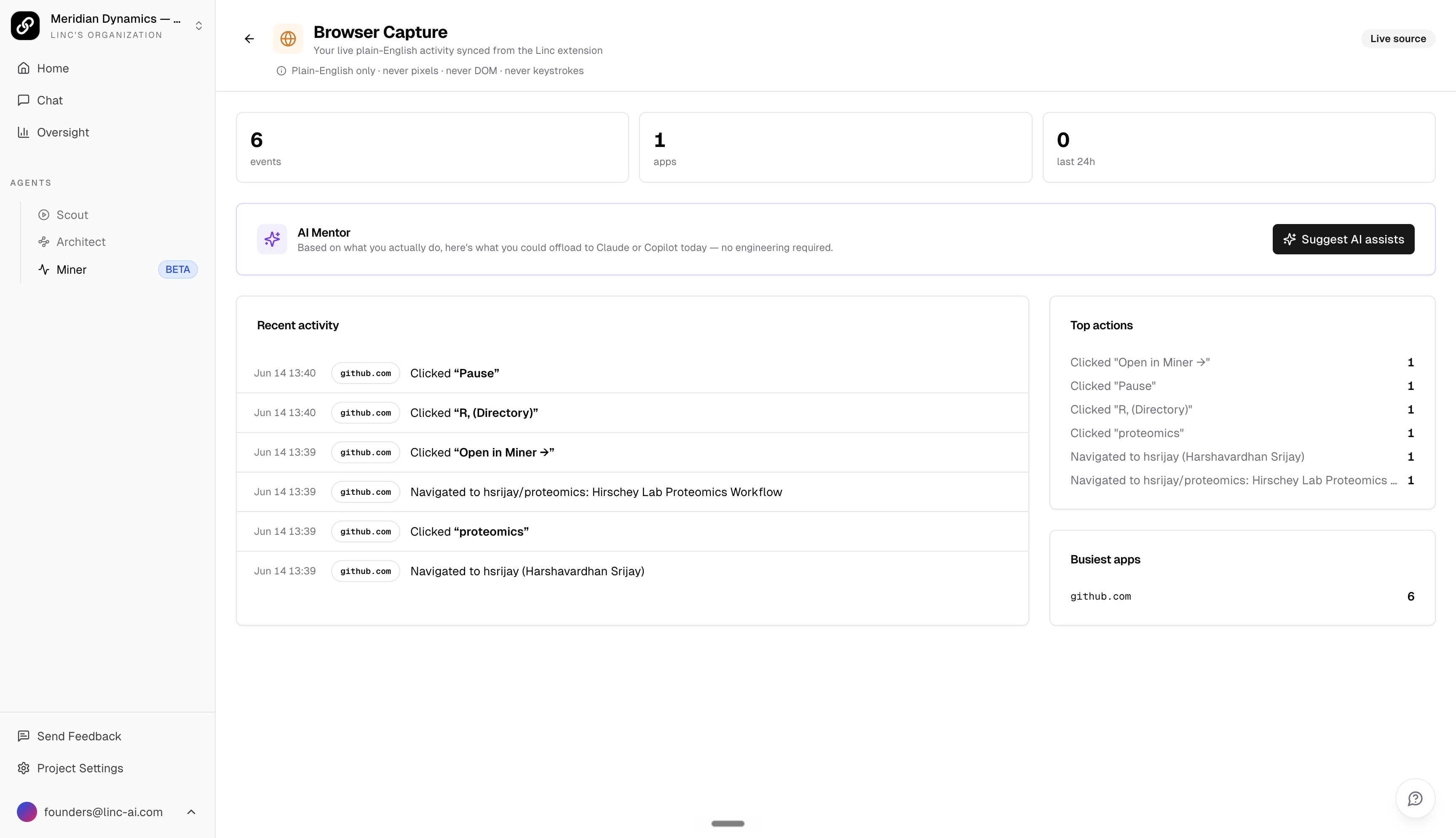
AI Mentor on Browser Capture
Inside the Browser Capture dashboard, the AI Mentor reads your top apps and recurring actions and suggests what you could hand off to an AI assistant today, with no engineering required. Click "Suggest AI assists" and Mentor returns concrete, copyable suggestions based on what you actually do, each with setup steps and an estimate of time saved.
What It Produces
Background Capture feeds the same process intelligence that powers the rest of Linc. The accumulated event trail gives the Miner real-world evidence of how a process runs, which variants exist, and where exceptions appear. That evidence complements Scout interviews, which capture the reasoning behind each step, and flows into Architect, where Linc turns the combined picture into SOPs, diagrams, and improvement opportunities.