Project Brief & Outputs
Give a project its goals and expected outputs so every generated deliverable is tailored to your engagement.
The Project Brief is where you state what an engagement is trying to achieve. It captures the goals, scope, and context for the project, and that context is injected into every generation downstream. The more you put in up front, the more tailored your SOPs, gap analyses, opportunities, and roadmap come out. It is the structured replacement for the free-form analysis instructions admins used to type by hand.
Both the Project Brief and the Outputs tab live in Project Settings, under the Engagement group in the left sidebar. They are project-scoped, so select a project first.
What the Project Brief captures
The brief is organized into objectives, context, and ROI assumptions. You only need to fill in what is relevant; blank fields are simply omitted from the generated context.
- Goals -What this engagement is trying to achieve and what success looks like at a high level.
- Inputs in scope -The source material the team is documenting (procedures, spreadsheets, system screenshots, recordings, and so on).
- Expected outputs -Which deliverables you want from this project, chosen from SOP, BPMN diagram, gap analysis, improvement opportunities, to-be process design, transformation roadmap, and fit/gap analysis.
- Success criteria -How the engagement will be judged (gaps surfaced, novel opportunities, hours saved, and similar measures).
- Company & industry context -Industry, company size, organizational structure, or regulatory environment, so the analysis is grounded in your reality.
- Systems & technology -ERPs, platforms, and key tools, used to assess automation feasibility and integration complexity.
- ROI assumptions -Fully loaded labor rate and currency, working weeks per year, and automation efficacy, which feed every opportunity's annual savings calculation.
- Additional instructions -Focus areas, terminology, and constraints the AI should keep in mind during analysis.
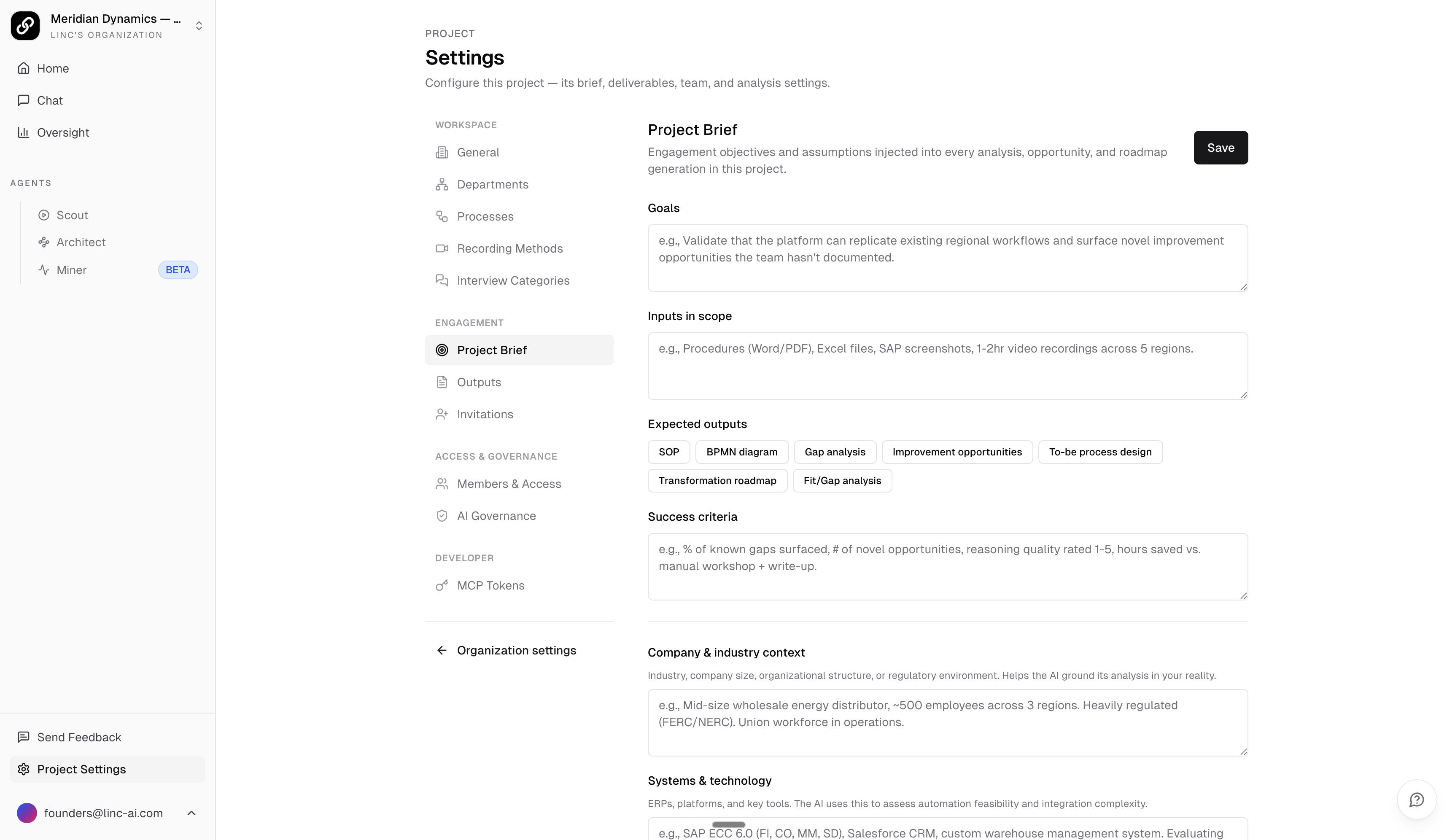
Filling out the brief
The Outputs tab
The Outputs tab is where you guide the format of each deliverable. While the brief decides which outputs you want, the Outputs tab controls how each one should look. You provide per-artifact format guidance, and that guidance is injected into the matching generator so outputs match your conventions.
You can leave format guidance on each artifact type the platform produces:
- SOP -e.g. number each step, include a RACI table, use British spelling.
- BPMN diagram -e.g. use swimlanes per department, collapse sub-processes.
- Gap analysis -e.g. group gaps by severity, include a one-line recommended action per gap.
- Improvement opportunities -e.g. lead with annual savings, express effort in t-shirt sizes.
- To-be process design -e.g. show before and after side by side, tag each step AI, System, or Human.
- Transformation roadmap -e.g. organize into 90-day phases, call out dependencies explicitly.
- Fit/Gap analysis -e.g. cite the vendor module for every fit, flag partial fits clearly.
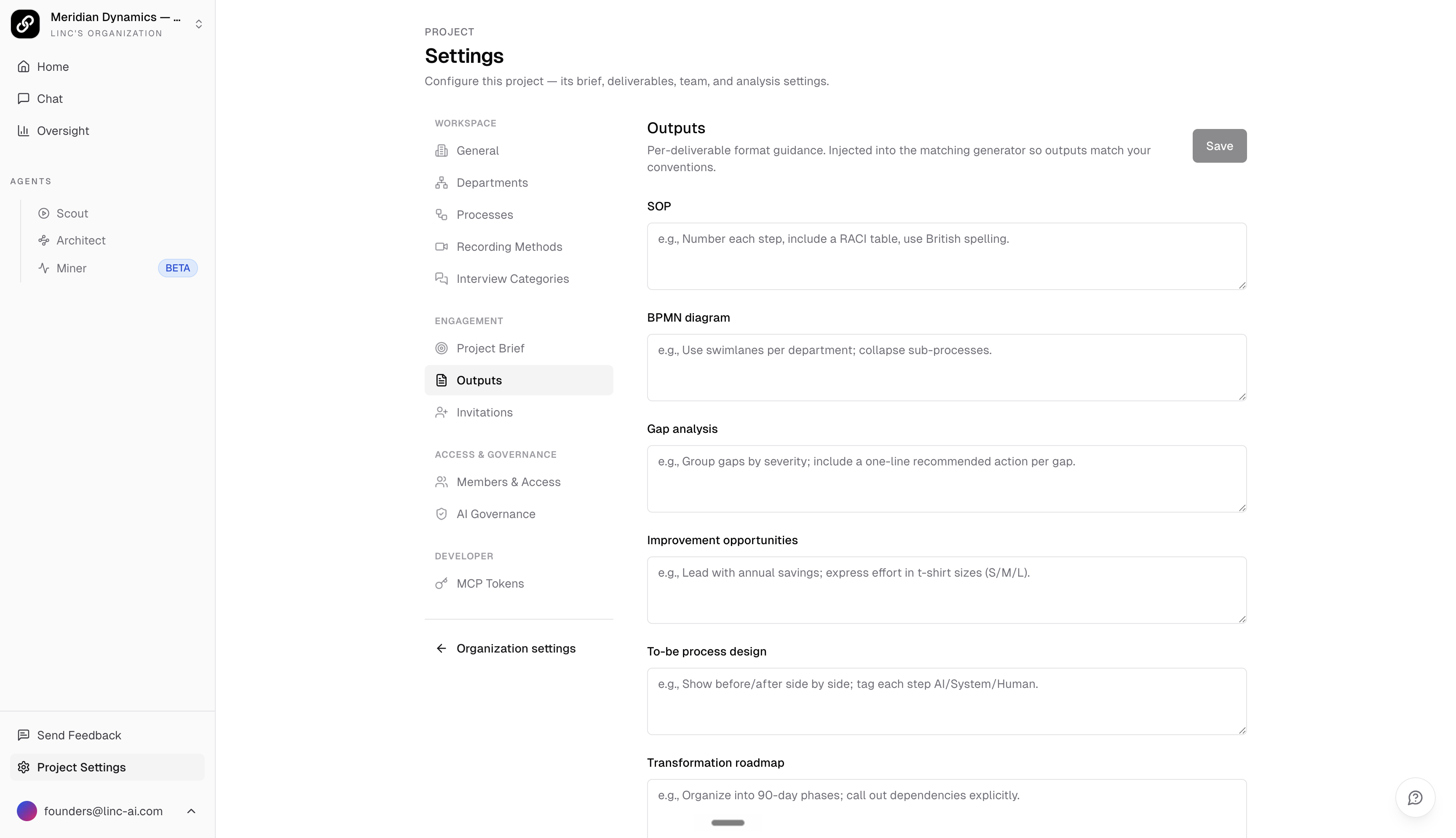
Configuring outputs
How the brief reaches Scout and Architect
The brief and your expected outputs are not just notes. They are rendered into the prompts that drive generation. When Scout produces an SOP or BPMN diagram from a session, and when Architect runs analysis, builds the gap analysis, opportunities, and roadmap, or performs a fit/gap, the project context is included so the model knows the goals, scope, systems, and the format you expect for each output. This is why a well-written brief produces noticeably more relevant deliverables than a blank one.
Relationship to SOP templates
The Project Brief and SOP templates do different jobs and work together. An SOP template controls the structure and branding of an SOP document: its sections, layout, and sample formatting. The brief controls the goals and scope of the engagement and which outputs you want, plus the per-artifact format guidance in the Outputs tab. In short, templates shape how an SOP looks, while the brief and Outputs settings shape what the analysis is trying to accomplish and how each deliverable is formatted.